Imago lets you batch convert RAW → JPEG, enhance photos with AI (Gemini), colorize old pictures, change backgrounds, add birthday themes, create candid looks — and much more — all organized by folders.
See the Magic: Before & After AI Enhancement
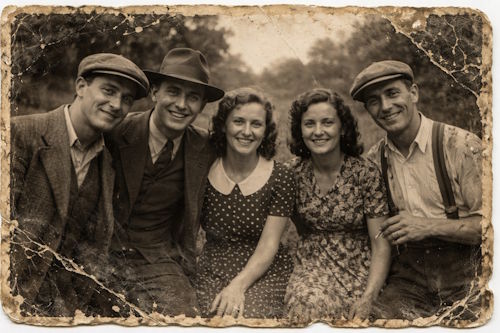
Original B&W Photo
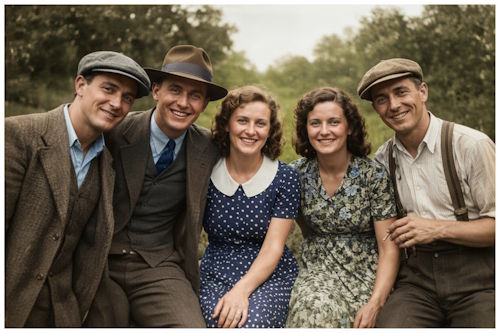
AI Colorized & Enhanced
Step-by-Step Guide
Register with Imago
Create your account on our platform to get started.
Choose Your Plan
• Professional — one-time payment + use your own Gemini API key (you pay API usage)
• Credits — buy credits and use our AI processing
No AI? No Problem!
Convert RAW → JPEG (or other formats) completely free — no credits or API needed.
Select Subscription & Download
Choose one-time or credits model → download the app for Windows (.exe) or macOS (executable).
Run the Application
Windows: Double-click the .exe (ignore security warnings if any)
Mac: Open the executable – allow it in Security settings if needed (enter credentials).
Enable AI Enhancement
In the main processing screen, activate the AI enhancement option (if you want AI features).
Organize Your Folders (Most Important!)
Create subfolders inside your main source folder for different enhancements.
Place a prompt.txt file in each folder with your custom AI instructions.
Example structure:
Photos/
├── Birthday Theme/
│   ├── prompt.txt          ← "add colorful balloons, birthday cake, joyful atmosphere"
│   ├── photo1.jpg
│   └── photo2.jpg
├── Colorize B&W/
│   ├── prompt.txt          ← "natural realistic colorization of vintage black and white photo"
│   └── old-family-photo.nef
├── Change Background/
│   └── prompt.txt          ← "remove background and place subject on tropical beach sunset"
│   ├── photo1.cr2
│   └── photo2.cr2
└── Candid Portraits/
    └── prompt.txt          ← "enhance skin, natural candid look, soft cinematic lighting"
│   ├── photo1.heic
│   └── photo2.arw
Check our website for many sample prompts!
Select Source & Destination
Choose your main source folder (the one containing all category subfolders).
Pick a separate destination folder (never the same as source!).
The app will preserve your folder structure in the output.

Start Processing & Check Logs
Run the batch. After completion, review logs and enjoy your enhanced photos!
Cancel Anytime
You can cancel processing whenever you want. Already running images will finish.
Patience is Key
Processing time depends on number of images and whether AI is enabled.
Keep your computer running until it finishes.
Ready to bring your photos to life?
Get Started Now